Troubleshooting & FAQ
Click a question to open it. If your problem is not here, email support@degen-rehab.com with what you were doing and a screenshot if you can.
Signing in
I forgot my password
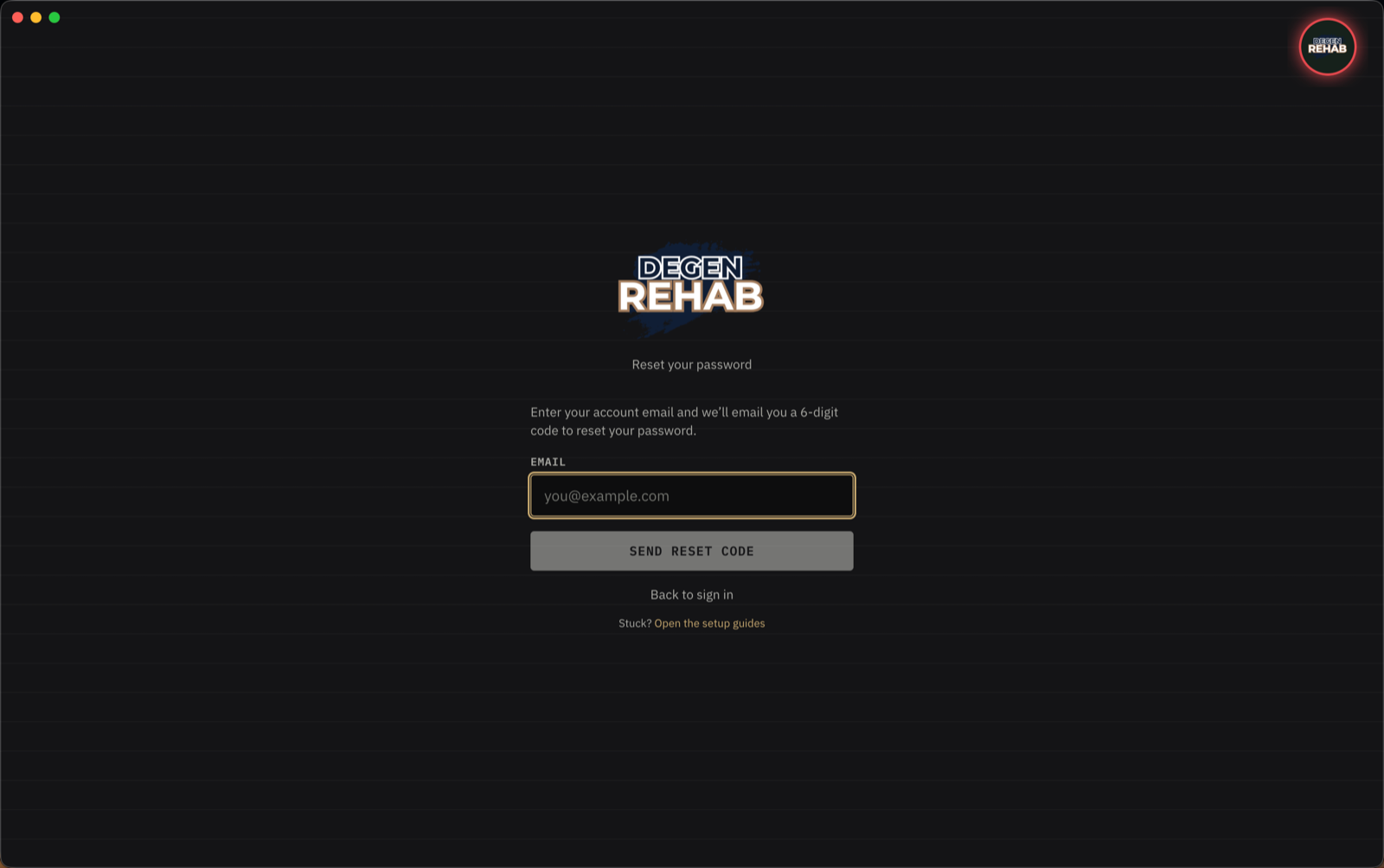
On the sign-in screen click Forgot password?, enter your email, and click Send reset code. Check your inbox (and spam) for an email from Degen Rehab with a 6-digit code. Type the code and your new password into the app, click Set new password & sign in, and you are back in. Codes expire after an hour. If yours did, click Send a new code and use the newest email.
The reset email never arrives
Give it two minutes and check your spam or junk folder. The sender is noreply@degen-rehab.com. If it still has not arrived, make sure you typed the same email you signed up with, then request a new code.
My display name is already taken
Names are unique so people can be recognised in chat. Add a number or a last initial and try again.
Installing and opening
Mac says the app "cannot be opened" or is "damaged"
The app is signed and notarized with Apple, so this should not appear on a normal install. If it does, one of three things is going on: the download did not finish (delete the app and download it again from the link in your email from Penny, or email support@degen-rehab.com for a fresh link), the app is being run from inside the disk image instead of from Applications (drag it there first), or your Mac's date and time are wrong (Apple's check fails with a bad clock, so fix it in System Settings → General → Date & Time). Still stuck? Email support@degen-rehab.com.
Windows says "Windows protected your PC"
Click More info, then Run anyway. The app is not code-signed yet, which is the only reason Windows warns.
The app asked for my computer password. Why?
Once, on first launch, to set up the web-trading block and a background watchdog that keeps lockouts honest. It is the same prompt any app shows when it needs to change a system file. You will not be asked again until those pieces update.
I closed the window and the app is still running
Closing the window hides the app to the menu bar (Mac) or system tray (Windows) so your locks keep working. Click the Degen Rehab icon there to bring it back, or choose Quit from its menu. Quit is disabled during a hard lockout on purpose.
How do I update?
The app updates itself in the background on both Mac and Windows and asks you to restart when a new version is ready. Your data lives in your account, not the app, so nothing is lost.
Connecting your platform
The Tradovate sign-in page does not load in my browser
Refresh the page once. Your browser may have cached the blocked address from before the app unlocked it. If it still does not load, go to Settings → Platform Connection and click Connect again.
TradingView shows a blank page when I sign in to Tradovate
Until Degen Rehab is connected to Tradovate, Tradovate's sign-in page is blocked on this computer, and TradingView's Tradovate login uses that same page. Every morning, connect the app first (the ritual's first screen does it), then sign in on TradingView. If the blank page is already open, refresh it once after the app connects. Signing out of Tradovate the night before does not change this.
I have to sign in to Tradovate every morning
That is normal. Tradovate's sign-in expires overnight, so the first connection each day is a real sign-in. The morning ritual opens it for you automatically.
It says connected but does not see my trades
Two usual causes. First, the platform account name on your account does not exactly match what the platform shows. Open Accounts and compare. Second, you are signed in with a different login than the one that owns the account. Each Tradovate login only sees its own accounts, so add the other login under Your Tradovate logins and connect it too. If a login signs in to accounts another connected login already watches, Settings says so and that login is ignored for them: set it to Live brokerage if it is your brokerage login, or remove it.
The app shows a banner about an account it does not recognise
A trade came in on a platform account you have not added yet. Open Accounts, find the "Detected on your platform" card, and click Add. The app creates the account with the limits copied from your first one.
It says “Not connected to Tradovate”
The app lost its connection to your platform, so nothing is being watched or enforced until it comes back. The badge is grey meanwhile. It usually reconnects by itself within a minute. If it does not, open Settings and press Connect on that login under Your accounts. When it reconnects, any trade that closed while it was away is checked against your limits. The notice only appears during your trading hours; outside them the badge just stays grey.
It says my Tradovate session expired
Tradovate signs you out overnight. If the app was closed or signed out when that happened, it cannot reconnect on its own and asks you to sign in again. Press Connect on that login in Settings → Platform Connection, or start the morning ritual, which opens the sign-in for you.
I connected, but none of my accounts appear
Check the login's type in Settings → Platform Connection. Prop-firm and evaluation accounts live on Tradovate's demo servers and need Prop / evaluation; a real brokerage account needs Live brokerage. With the wrong type the sign-in succeeds but Tradovate shows the app an empty list. Change the type (that signs the login out) and connect again.
I do not see NinjaTrader in the platform list
Pick Tradovate and sign in with your NinjaTrader username. That one connection covers both. There is no separate NinjaTrader connection right now, and accounts that only have a Rithmic username cannot connect yet.
Locks and enforcement
My trade was closed and I did not close it
The app closed it and showed a notice saying why. It only ever closes a trade to enforce one of your own rules: trading before the ritual, during a cooldown, outside your hours, after a daily limit, over your max position size, or adding to an open position when you turned that rule on. See Locks, cooldowns & lockouts.
A stop order appeared on my chart that I did not place
That is the protective stop. The app places it at the price where your remaining daily loss runs out, so the exchange enforces your limit even if this app is closed. You may drag it closer to your entry to stop out earlier. Moving it farther away than the app placed it, or removing it, counts as a strike: the first time it is put back with a warning, the second time the trade is closed and the account locks for the day.
The Dashboard says my platform is locked
Trading is locked every day until you complete the morning ritual. Your platform itself stays open; the badge is red and anything you trade is closed on fill. Click Start ritual to unlock trading. See Your first morning ritual.
Trader Workstation or NinjaTrader closed by itself
The app closes a desktop platform only when it cannot see it. Opening TWS or NinjaTrader while trading is blocked gives it three minutes to sign in and connect; if the app never attaches in that time, it closes the platform, because it cannot enforce your rules on a platform it cannot see. Open the platform again and click Connect in Settings → Platform Connection (or start the ritual) to get a fresh window, then sign in. Once connected it stays open under every lock. If it keeps happening, check the platform's API setting: TWS needs "Enable ActiveX and Socket Clients" ticked and Read-Only API unticked, and NinjaTrader needs the AddOn installed and a restart. See Connect your trading platform.
I cannot change my loss limit or other rules
A Rule Lock is running, the one you chose in onboarding or on the Accounts page. Rules unlock automatically when the period ends. There is no override. You chose these rules when you were calm and clear headed. Trust that version of yourself.
The app locked me for the day and I want to keep trading
That is the product working. A daily loss limit, a consecutive-loss stop, or a lock-out you chose ends the day for that account. Your platform stays open, but every trade you place on a locked account is closed the moment it fills. Force-quitting the app to get around it is detected and counts as a broken streak, and your cohort is told.
My whole screen went black after I entered a trade
The blackout screen is on for that account. It hides your screen while a trade is open so you cannot watch or interfere. It clears when the trade closes. If you genuinely need to manage the position, hold the button at the bottom for five seconds. That breaks your streak. Turn the blackout off on the Accounts page. Turning it off takes effect the next trading day.
My stop was hit at my loss floor and the account locked, but there was no cooldown
That is right. A protective stop that fills at your floor ends the day for that account, and a day lock is its own gate, so there is no cooldown to sit through. You do get a short check-in card on the Dashboard for that trade: classify it and it lands in your Journal. Answer it before you expect anything else to unlock. Your other accounts keep trading until they reach their own limits.
A banner says “Cooldown waits for your other accounts”
You closed one account while others are still in the same trade. The accounts that closed first wait for the rest: no new trade can be opened on any account meanwhile, and the check-in starts when the last account is out, as one trade on one card. The open positions are not touched.
Every trade I open is closed with “your cooldown isn't finished” or “you have an unanswered check-in”
A post-trade check-in is still waiting. Open the Dashboard: the card at the top says your trade closed and offers Start post-win check-in or Start post-loss check-in (or Win, Loss and Breakeven buttons if the amount could not be detected). Finish that check-in and trading unlocks. A card is never cleared for you: one left from an earlier day comes back marked "Unanswered check-in from" that day, and nothing unlocks until it is answered, so the trade always reaches your Journal.
Trading is blocked even though I finished the ritual
Check the badge and the Dashboard banner. The usual reasons: you are outside the trading hours you set, a cooldown from your last trade is still running, or one of your accounts hit a limit. If none apply, open Settings and confirm every login you set up shows Connected.
Uninstalling
How do I uninstall on Mac?
Quit the app first from the menu bar icon (choose Quit). A normal quit switches the web-trading block off. Quit is disabled during a hard lockout, so wait for the lockout to end. Then drag Degen Rehab from Applications to the Trash and remove it from System Settings → General → Login Items if it is listed there.
To remove the helper the app installed on first launch, open Terminal (in Applications → Utilities), paste these lines one at a time, and enter your Mac password when asked:
sudo /Library/PrivilegedHelperTools/com.degenrehab.hosts.sh unblock
sudo rm -f /Library/PrivilegedHelperTools/com.degenrehab.hosts.sh /etc/sudoers.d/degen-rehab
sudo launchctl bootout system/com.degenrehab.guard
sudo rm -f /Library/LaunchDaemons/com.degenrehab.guard.plist /Library/PrivilegedHelperTools/com.degenrehab.guard.sh /Library/PrivilegedHelperTools/com.degenrehab.guard.version
sudo rm -rf /Users/Shared/DegenRehab
rm -rf ~/Library/Application\ Support/degen-rehab
Your account, journal, and trade history live on our servers, not on your computer, so signing back in on a fresh install brings everything back. To delete your account for good, email support@degen-rehab.com from your account email.
How do I uninstall on Windows?
Quit the app first from the system tray icon (choose Quit). Quit is disabled during a hard lockout, so wait for the lockout to end. Then uninstall Degen Rehab from Settings → Apps → Installed apps as you would any program.
To remove the helper the app installed on first launch, open Windows PowerShell as administrator (right-click the Start button) and paste these lines one at a time:
schtasks /Run /TN DegenRehabHostsUnblock
schtasks /Delete /TN DegenRehabHostsBlock /F
schtasks /Delete /TN DegenRehabHostsUnblock /F
schtasks /Delete /TN DegenRehabGuard /F
Remove-Item -Recurse -Force "$env:ProgramData\DegenRehab"
I uninstalled the app and my trading platform's website is still blocked
The web-trading block is a system setting, not part of the app itself, so deleting the app does not switch it off. The app switches it off when you quit it normally. If it was force-quit, quit during a lockout, or deleted while running, the block stays on, and restarting the computer does not clear it.
Mac: open Terminal and run the first line. If Terminal says the file does not exist, run the other three instead.
sudo /Library/PrivilegedHelperTools/com.degenrehab.hosts.sh unblocksudo sed -i.bak '/# DEGEN-REHAB-BLOCK-START/,/# DEGEN-REHAB-BLOCK-END/d' /etc/hosts
sudo dscacheutil -flushcache
sudo killall -HUP mDNSResponderWindows: open Windows PowerShell as administrator and run the first line. If it says the task does not exist, run the other lines instead. The last one opens the hosts file in Notepad: delete every line between DEGEN-REHAB-BLOCK-START and DEGEN-REHAB-BLOCK-END, including those two, and save.
schtasks /Run /TN DegenRehabHostsUnblocknetsh advfirewall firewall delete rule name="DegenRehabDoH"
ipconfig /flushdns
notepad "$env:SystemRoot\System32\drivers\etc\hosts"Then quit your browser completely and open it again, because browsers keep their own copy of the block for a while. If the site still will not load, email support@degen-rehab.com and say which platform you use and whether you are on Mac or Windows.
Badge, notifications, and other bits
I never got the sign-up verification code
Give it a minute and check spam or promotions. The email comes from noreply@degen-rehab.com. Click Send a new code in the app and use the newest email. If you typed your address wrong, create the account again with the right one; the unverified one is removed automatically. If you closed the app, sign in with your email and password and it takes you back to the code screen.
What is the little round badge on my screen?
The trade-status badge. Green means you are clear to place a trade on every account. Yellow means some accounts can trade and others cannot. Pulsing red means trading is blocked. Click it to see each account and why. Drag it anywhere to park it. Click it three times quickly and it becomes the ball in a full-screen game of Pong (Esc closes it). Turn it off in Settings → App Behavior.
It says “Connected on” another computer
Degen Rehab connects to your platform from one computer at a time, so two copies of the app can never close each other’s trades. The computer you connected most recently is the active one. Any other computer running the app goes on standby: it is not connected and enforces nothing, and its badge turns grey. To trade from the standby computer, click Use this computer in its sidebar. If the active computer is shut down or asleep for three minutes, a standby computer takes over by itself.
The badge disappeared
Check Settings → App Behavior → Trade-status badge is on. If it is on and you still cannot see it, it may have been parked off the edge of a display you have since unplugged. Turn the toggle off and on again to bring it back to the top-right corner.
A banner keeps popping up while I trade
That is the in-session check-in, a 30-second mindfulness pause. Change how often it appears, or turn it off, in Settings → App Behavior → In-session check-in.
How do I cancel?
The app is a one-time purchase, so there is nothing to cancel. On the Community membership, or an older monthly plan? See Membership for how to cancel those.
Diagnostics
Do I need to send a diagnostics file?
Usually not. The app sends its diagnostics to support automatically: shortly after you sign in, every hour while it runs, and right away if something crashes. When you email support, they can already see what the app was doing.
If support asks for a file anyway (for example, the app has not been able to go online), you can still export one yourself:
- Open Settings. In the Platform Connection panel, find Something went wrong? and click Export diagnostics file.
- A text file named "Degen Rehab diagnostics" with today's date appears on your Desktop, and a Finder or Explorer window opens showing it.
- Drag that file into a message to support, with a sentence about what you were doing when it went wrong.