Settings overview
Settings is one long page. Here is every panel, top to bottom, and what it does. Remember to click Save changes at the bottom after editing the rules panels.
Platform Connection
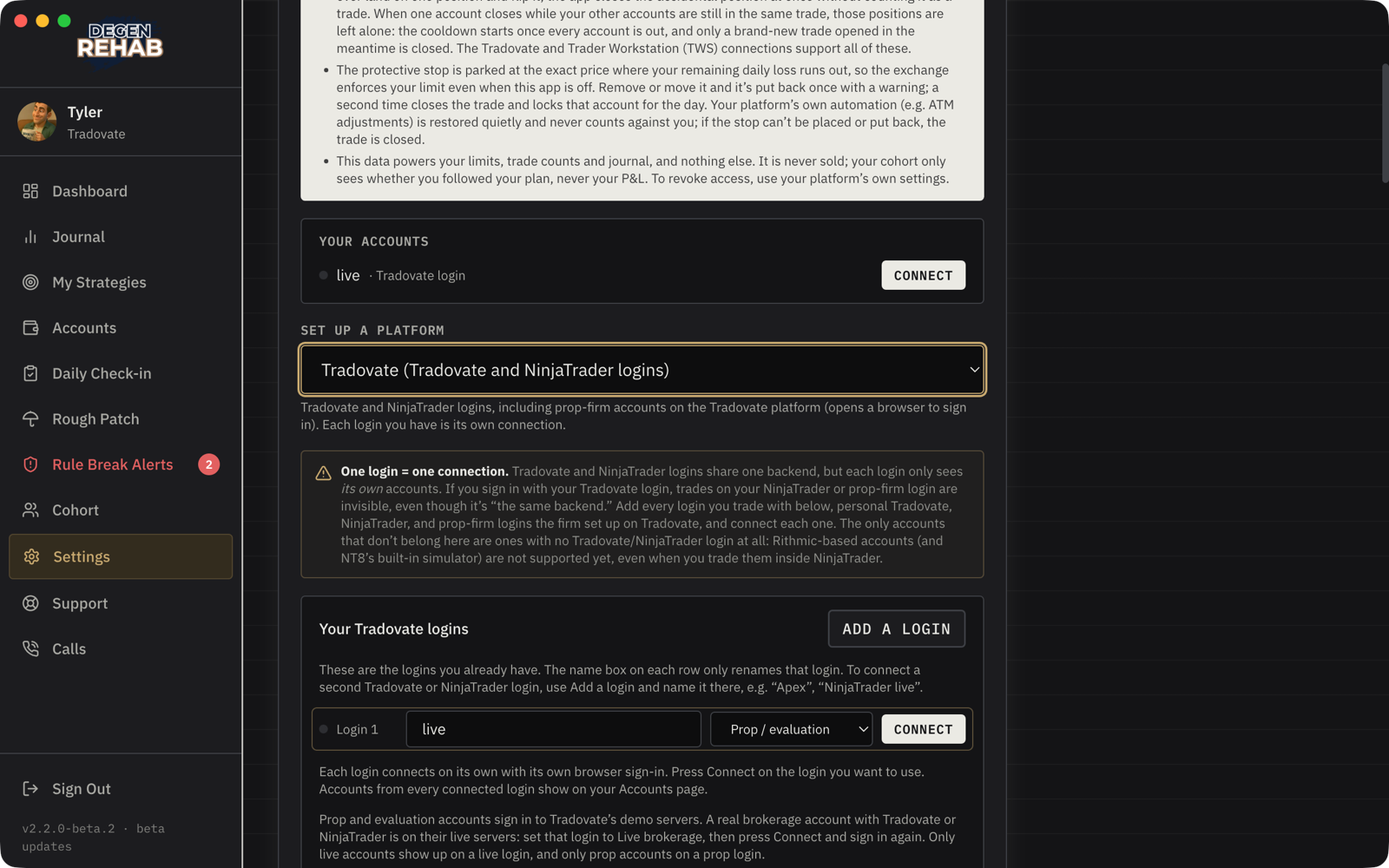
Where you add a second platform, reconnect one, and manage your Tradovate logins. Each login has a name you give it and a type: Prop / evaluation for prop-firm and evaluation accounts (Tradovate runs those on its demo servers) or Live brokerage for a real brokerage account. Changing the type signs that login out; press Connect and sign in again. Under Your accounts every login you set up shows Connected or a Connect button of its own. Your first platform was connected during onboarding. Covered in full in Connect your trading platform. The Show log file button under Connection log opens a technical log. Only use it if support asks you for it.
Platform Lockout
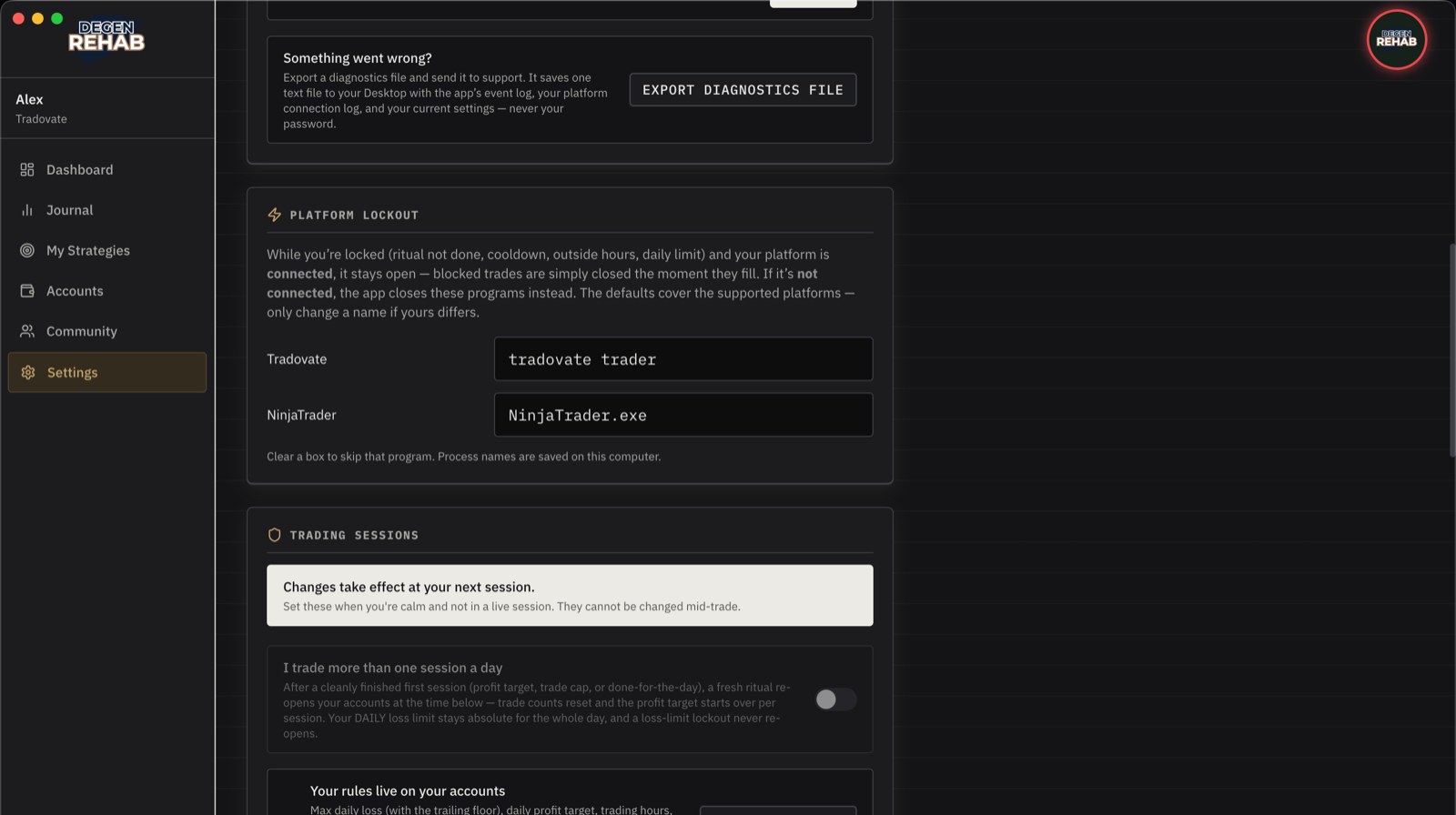
When your platform is connected, it stays open during a lock and blocked trades are simply closed on fill. When it is not connected, a desktop platform you open gets three minutes to connect, and is closed if it never does. This panel lists the program names the app closes in that case. The defaults are correct for the supported platforms. Only change a name if yours is different, and clear a box to skip that program.
Trading Sessions
- I trade more than one session a day. If your first session ends cleanly (profit target or trade cap), a fresh ritual at the time you set re-opens your accounts with trade counts reset. Your daily loss limit stays absolute for the whole day.
- Blocked tickers. Products you are not allowed to trade, on any of your accounts. Type the product root (NQ covers every NQ contract month; MNQ is a separate entry) and click Block, then save. With a platform connected, a trade on a blocked ticker is closed the moment it opens and you get a banner. It does not count as a trade and there is no cooldown. You can block a ticker at any time, even during a session or a Rule Lock. Unblocking one waits until your Rule Lock ends and no session is active.
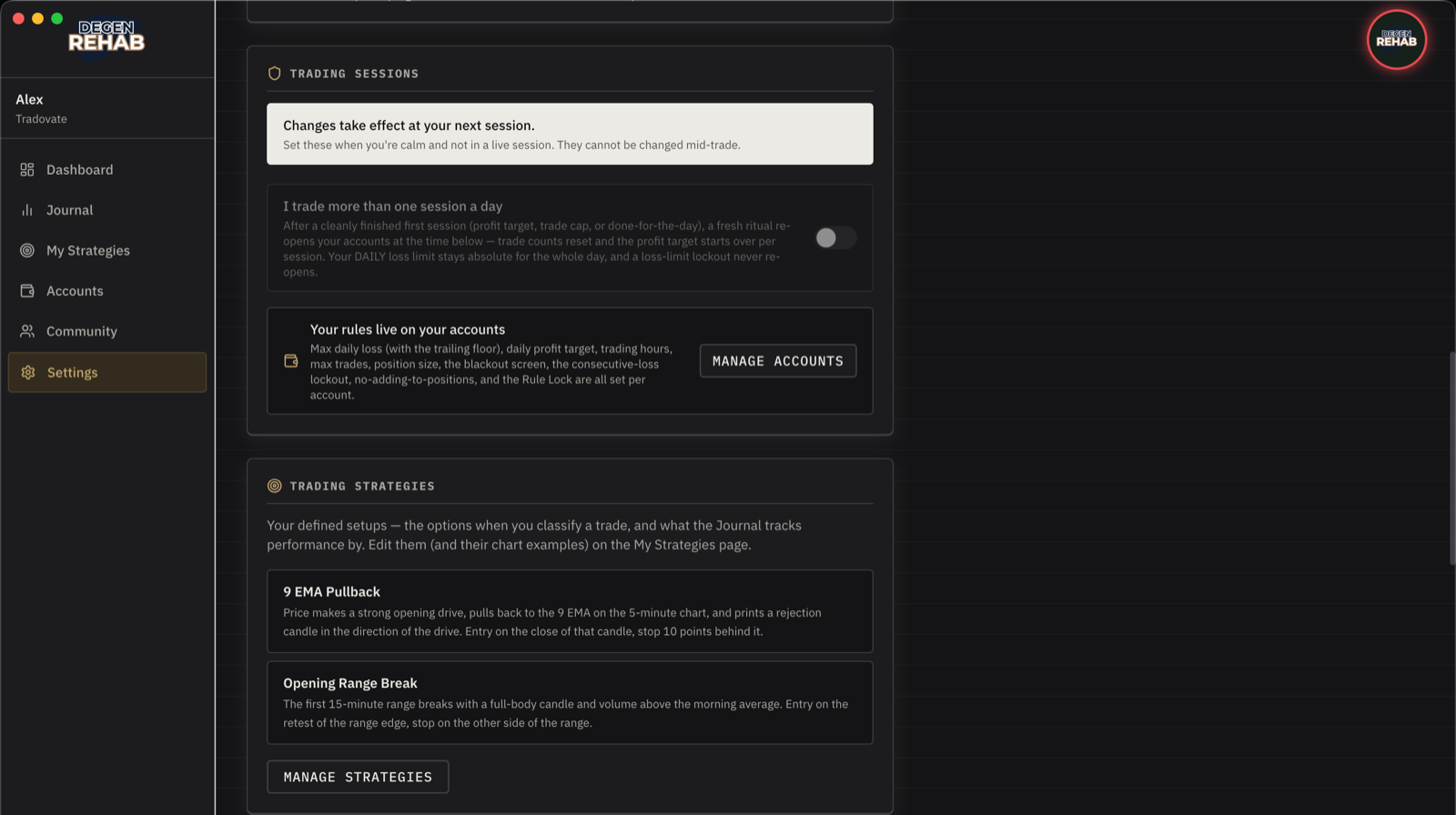
Everything else lives on each account: max daily loss, daily profit target, trading hours, max trades, position size, the blackout screen, the consecutive-loss lockout, no-adding, and the Rule Lock. Manage accounts takes you there. Changes take effect at your next session and cannot be made mid-trade or while a Rule Lock is running.
Trading Strategies
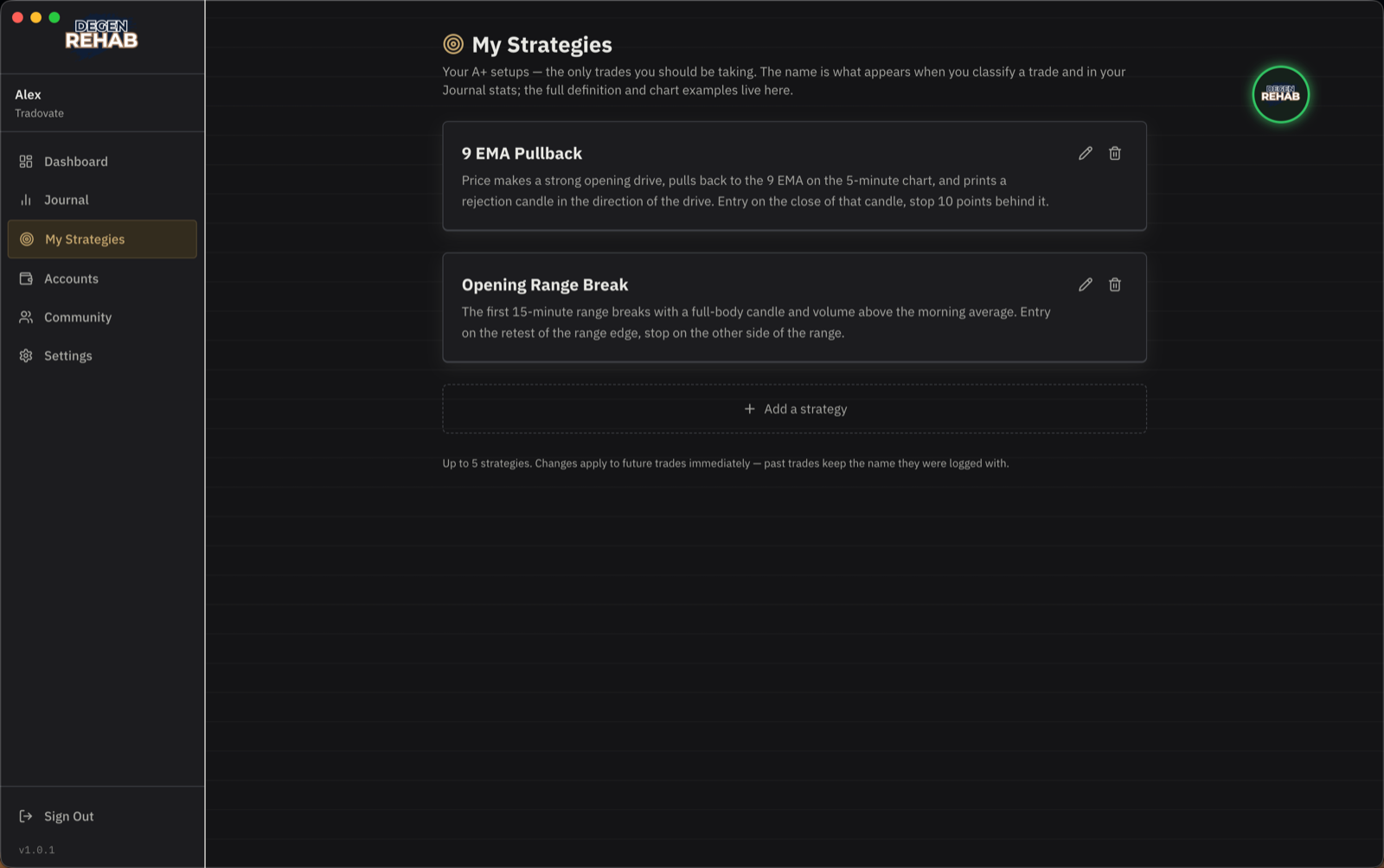
A read-only summary of your A+ setups. Edit them, and their chart images, on the My Strategies page. You can have up to ten. Changes apply to future trades; past trades keep the name they were logged with.
Cooldown Durations
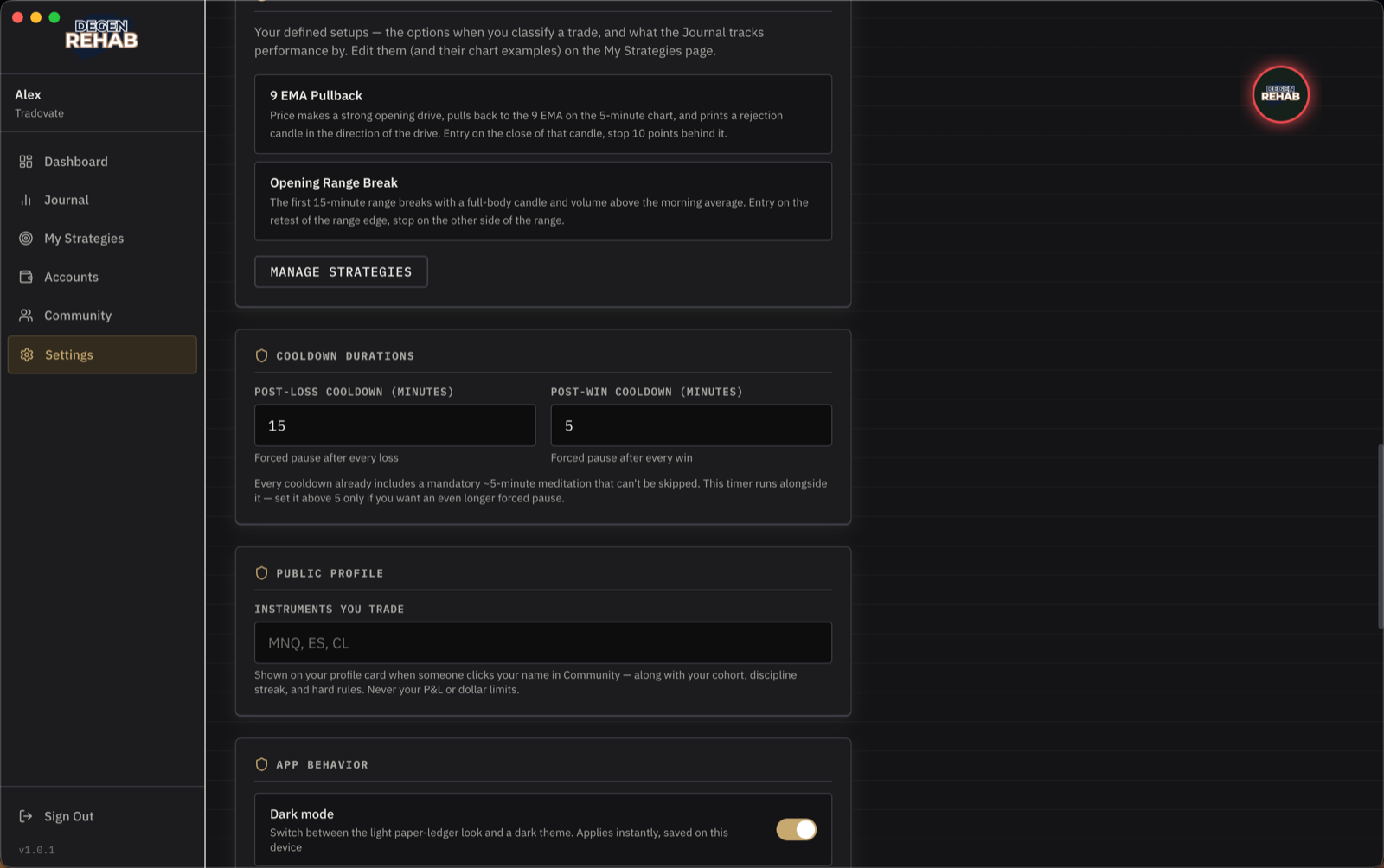
How long the forced pause lasts after a loss and after a win, in minutes. Every cooldown already includes a five-minute meditation that cannot be skipped, so the minimum is five. The timer and the meditation run at the same time, not one after the other.
Public Profile
The instruments you trade, shown on your profile card when someone clicks your name in Community. Your profile card never shows your P&L or dollar limits, only your streak, your cohort, and your non-dollar rules.
App Behavior
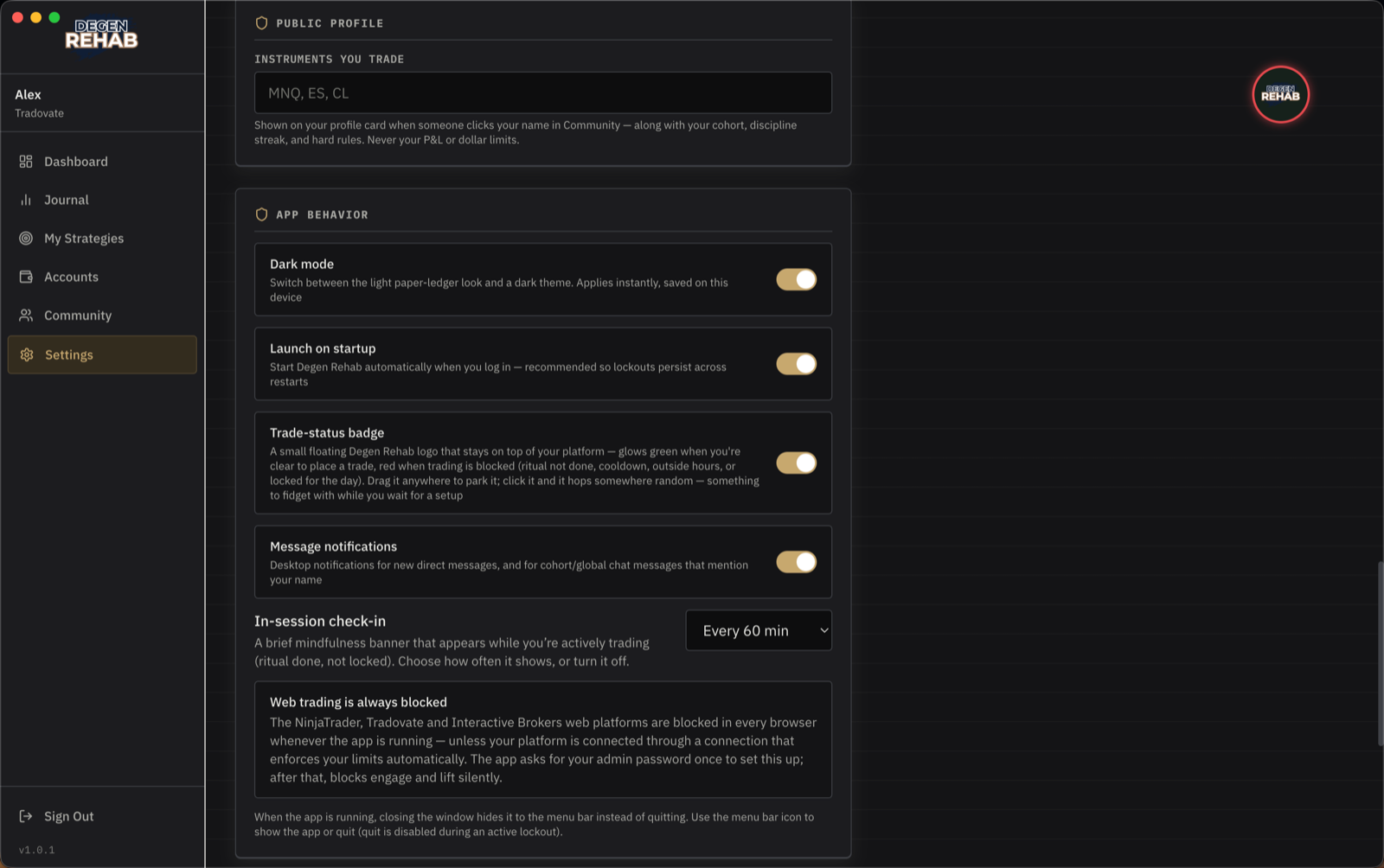
- Dark mode. Switch between the light and dark look.
- Launch on startup. Recommended. Lockouts only work while the app is running.
- Trade-status badge. The floating badge. Green means clear to trade, yellow means some accounts are blocked, red means blocked, grey means the app is not connected to your platform right now, so nothing is being watched or enforced. See Dashboard & the badge.
- Message notifications. Desktop notifications for direct messages and mentions in chat.
- Do not disturb: block direct messages. Other members cannot send you private messages while this is on. Degen Rehab staff can still reach you. The cohort chat is not affected.
- In-session check-in. How often a short mindfulness banner appears while you are actively trading. It shows every 30 minutes unless you pick 15, 60, 90 or 120 minutes, or set it to Off.
- Web trading is always blocked. Informational. Browser versions of Tradovate and NinjaTrader are blocked whenever the app runs, unless your platform is connected through a connection that enforces your limits. Tradovate's sign-in page is part of that block, so a Tradovate login inside TradingView stays blank until the app is connected.
Closing the app window hides it to the menu bar or system tray instead of quitting. Use the tray icon to show the app or quit. Quitting is disabled during a hard lockout.
Help & Guides, Membership
Open Help Center brings you here. The app is a one-time purchase, so there is nothing to renew or manage. Members on an older monthly plan can open Stripe's portal from here. See Membership.