Locks, cooldowns & lockouts
Degen Rehab has one job: stop you from doing the thing you told it to stop you from doing. It does that with three kinds of pause. Here is what each one looks like and what it takes to get through it.
The three kinds of lock
- Ritual lock. Every day starts here. Trading is blocked until the morning ritual is done. See Your first morning ritual.
- Cooldown. After every trade you close yourself, win or lose. A trade that ended the day on its account gets a short check-in instead: classify it and you are done. An entry the app closed on sight because trading was locked is not a trade: its small P&L lands on the account's day so the app stays in step with your platform, but it is not counted toward your trade cap, not journaled, and there is no check-in or cooldown. Classify the trade, sit through a meditation and a timer, then decide whether to keep going. Covered below.
- Day lock. An account hit its daily loss limit, its consecutive-loss stop, its trade cap, or a profit target, or you locked it yourself. That account is done until tomorrow. A loss-limit lock never re-opens. A protective stop that fills at your loss floor is a day lock, not a cooldown: the account locks, and the trade gets a short check-in card (classify it, no timer or meditation) so it still lands in your Journal.
Trading-hours windows are a fourth, gentler block: outside your window new trades are closed on fill, but nothing about your day changes.
What "blocked" means on your platform
Your platform stays open. Blocked never means closed: you can watch price, mark up charts and set levels. What it means is that any trade you place while blocked is closed the moment it fills, resting orders are cancelled during cooldowns and day locks, and a large on-screen notice tells you why. The floating badge is the tell: red means anything you trade gets flattened.
That holds as long as the app can see your platform. Desktop platforms like Trader Workstation and NinjaTrader 8 connect from your own computer, so when you open one while blocked the app gives it three minutes to sign in and connect; once it is connected it stays open. A platform that never connects in that time is closed, because the app cannot enforce anything on a platform it cannot see. Open it again and click Connect in Settings, or start the ritual, to get another window. The browser versions of the platforms are blocked whenever no connected platform is watching.
The cooldown, step by step
The moment a trade closes, whether you logged it by hand or the app detected it, the cooldown begins. While it runs, the whole screen outside the app is covered so nothing pulls you back to a chart.
One trade across several accounts. If you copy one signal to several accounts, the accounts that close first wait for the rest. A banner says Cooldown waits for your other accounts, no new trade can be opened on any account meanwhile, and the check-in starts when the last account is out, as one trade and one card listing every account. A position your broker's risk desk closed counts as a trade too, and the card says so. A stop-and-reverse, closing a trade and opening the opposite direction in one move, counts as a close plus a new entry: the new position is closed and the check-in starts. Finish the check-in, then you may continue trading.
1. Classify the trade
Four types. Be honest, because the Journal is built from this.
- Type 1: on plan, made money.
- Type 2: on plan, lost money. Normal. A stop is a stop.
- Type 3: off plan, lost money.
- Type 4: off plan, made money. The most dangerous trade in trading.
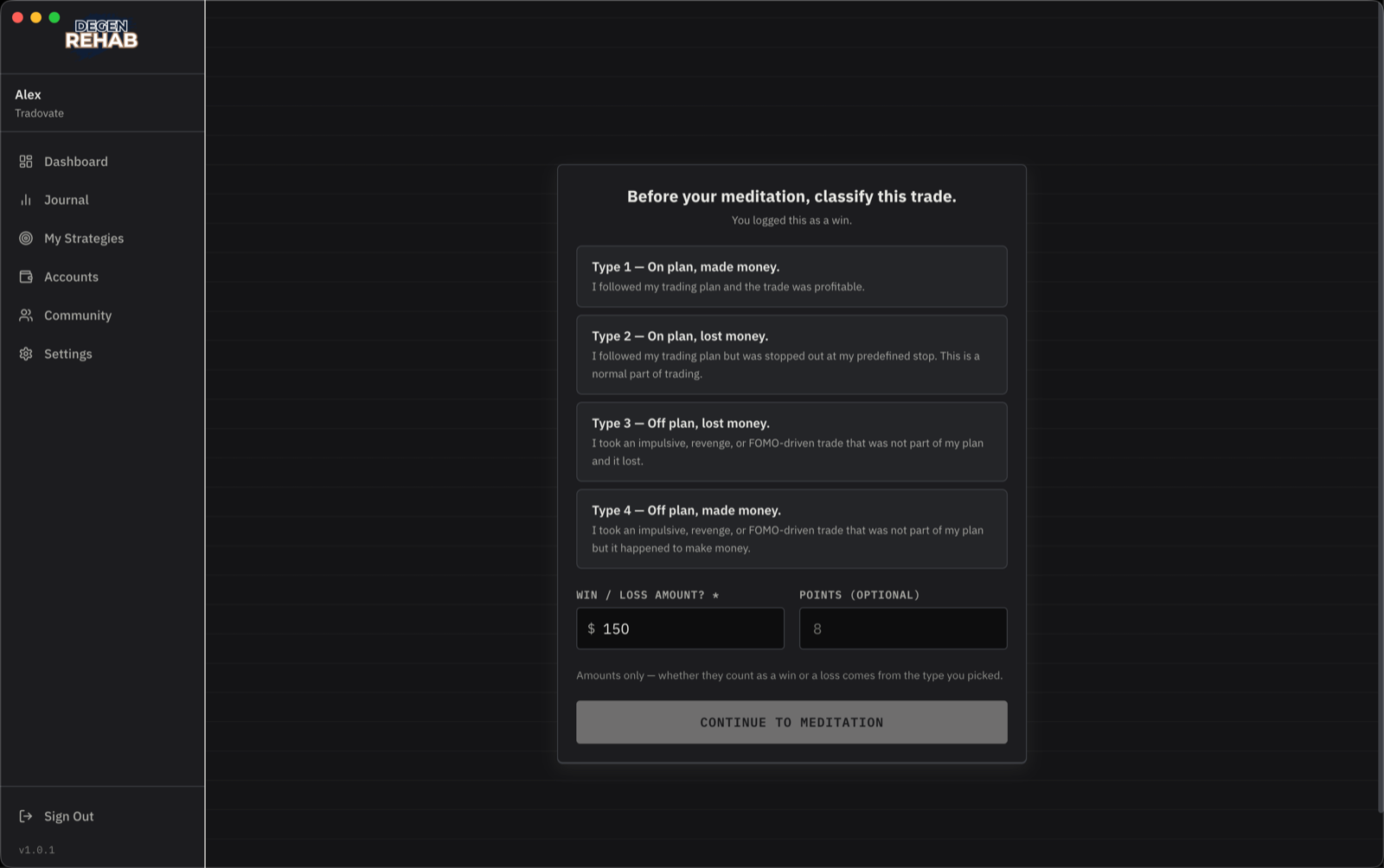
For Type 1 and 2 you also pick which A+ setup it was. For Type 3 and 4 you write the reason you took it. Type 3 and 4 count as off-plan trades and break your discipline streak. Confirm the dollar amount and, if you like, the points.
2. Meditation and timer
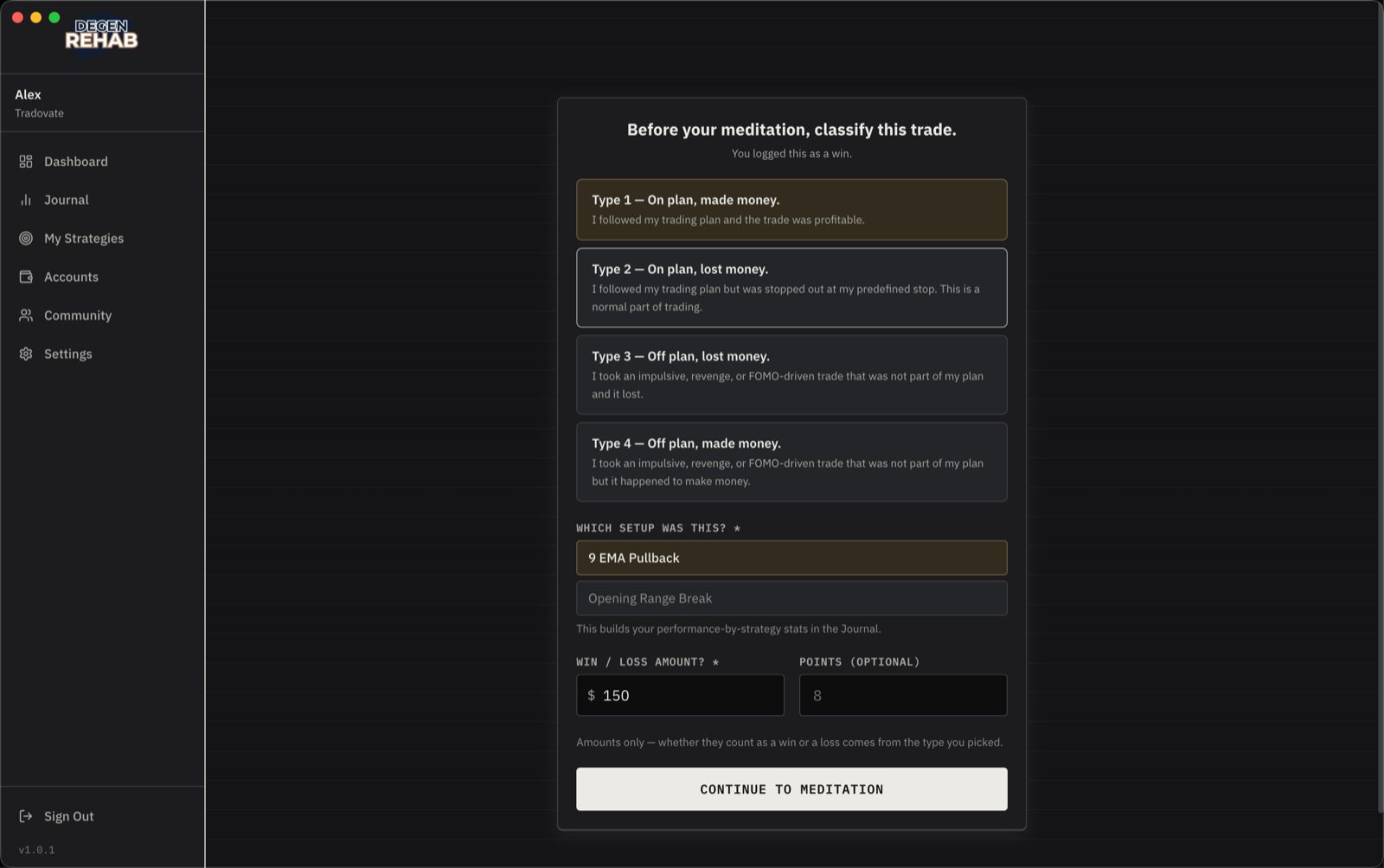
The meditation for that outcome starts by itself, and your cooldown timer runs alongside it. You wait for whichever is longer. There is no skip, and quitting the app does not end the cooldown.
3. Decide
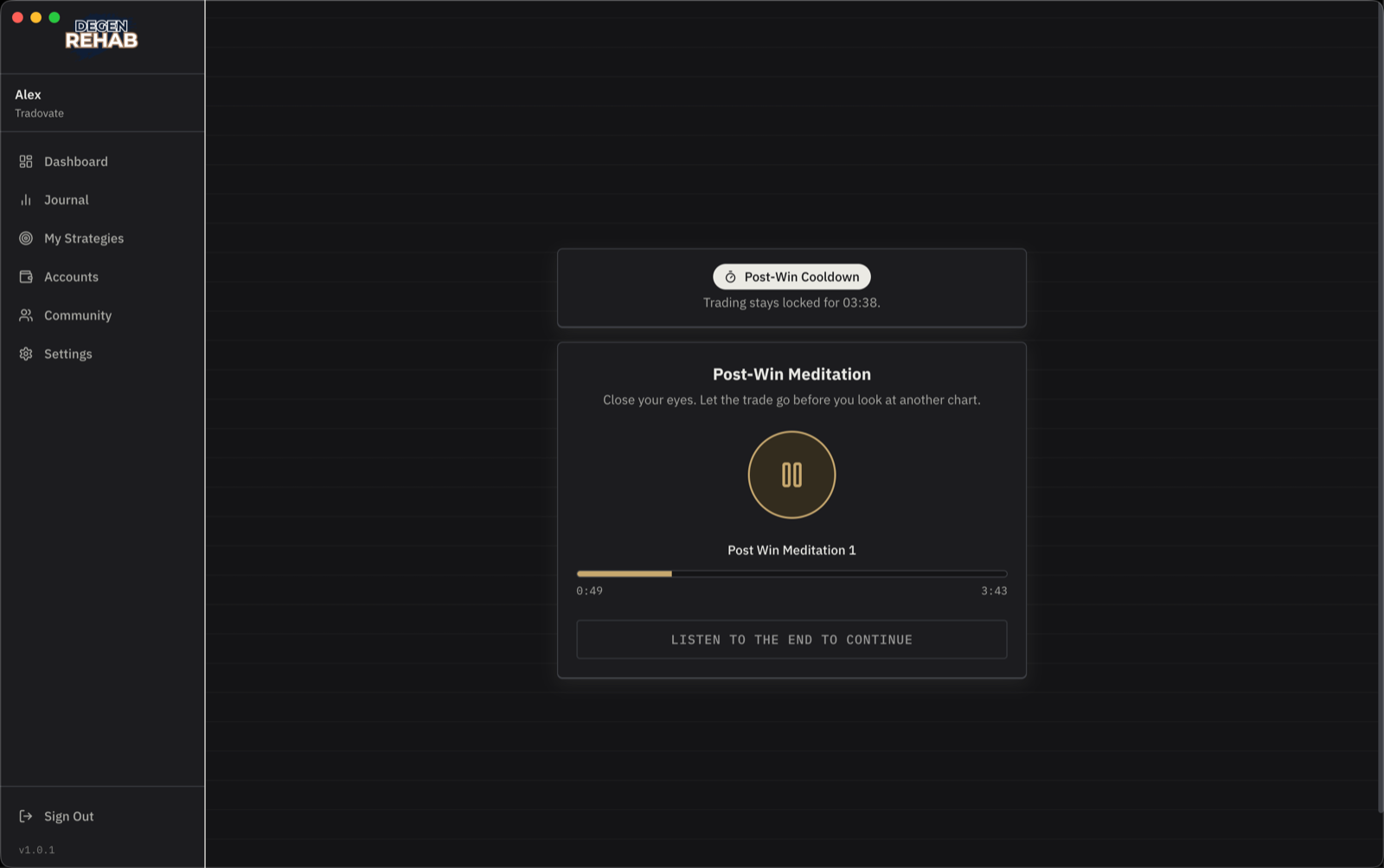
When both finish you choose: lock this account for the rest of the day, lock all accounts, or keep trading.
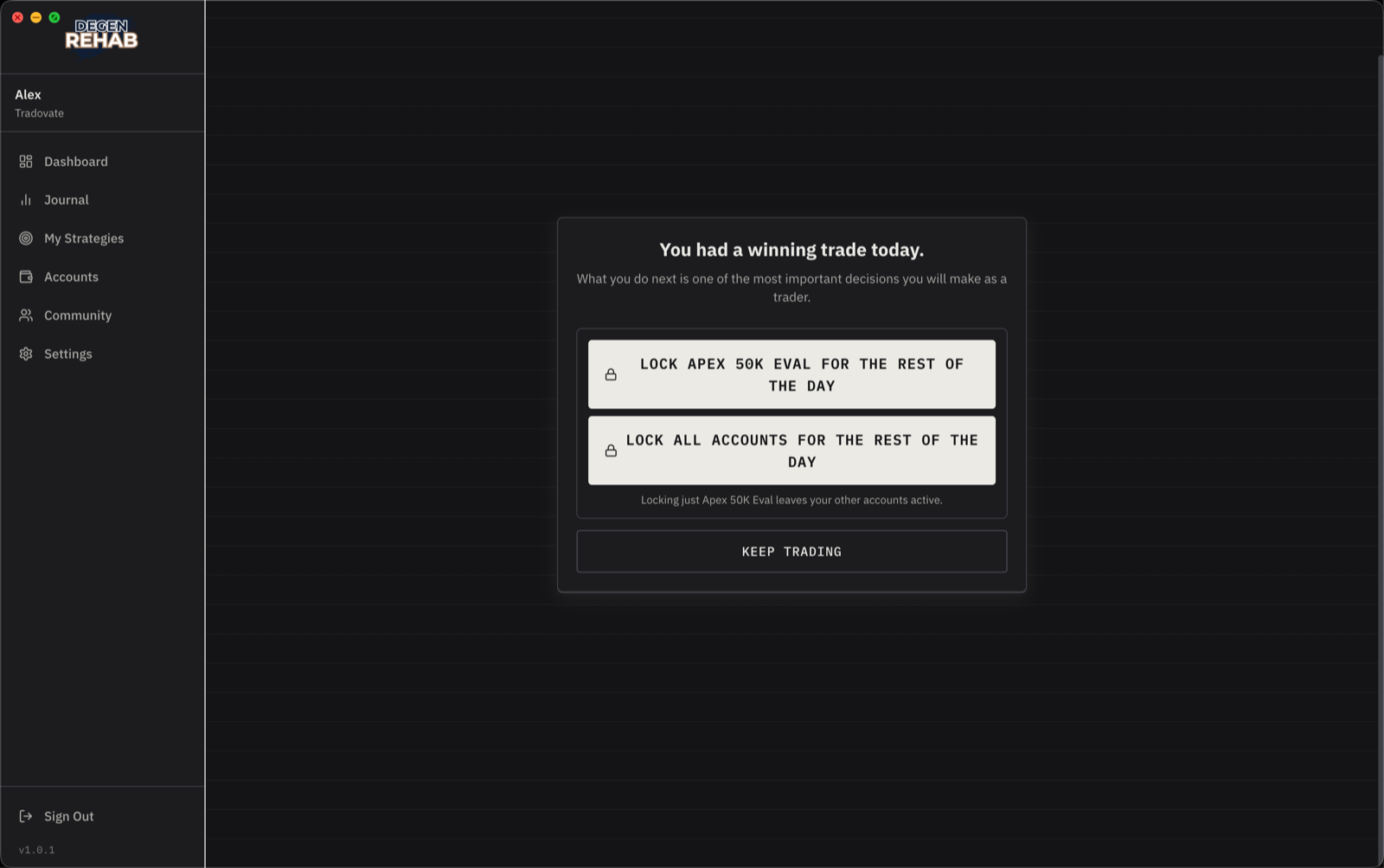
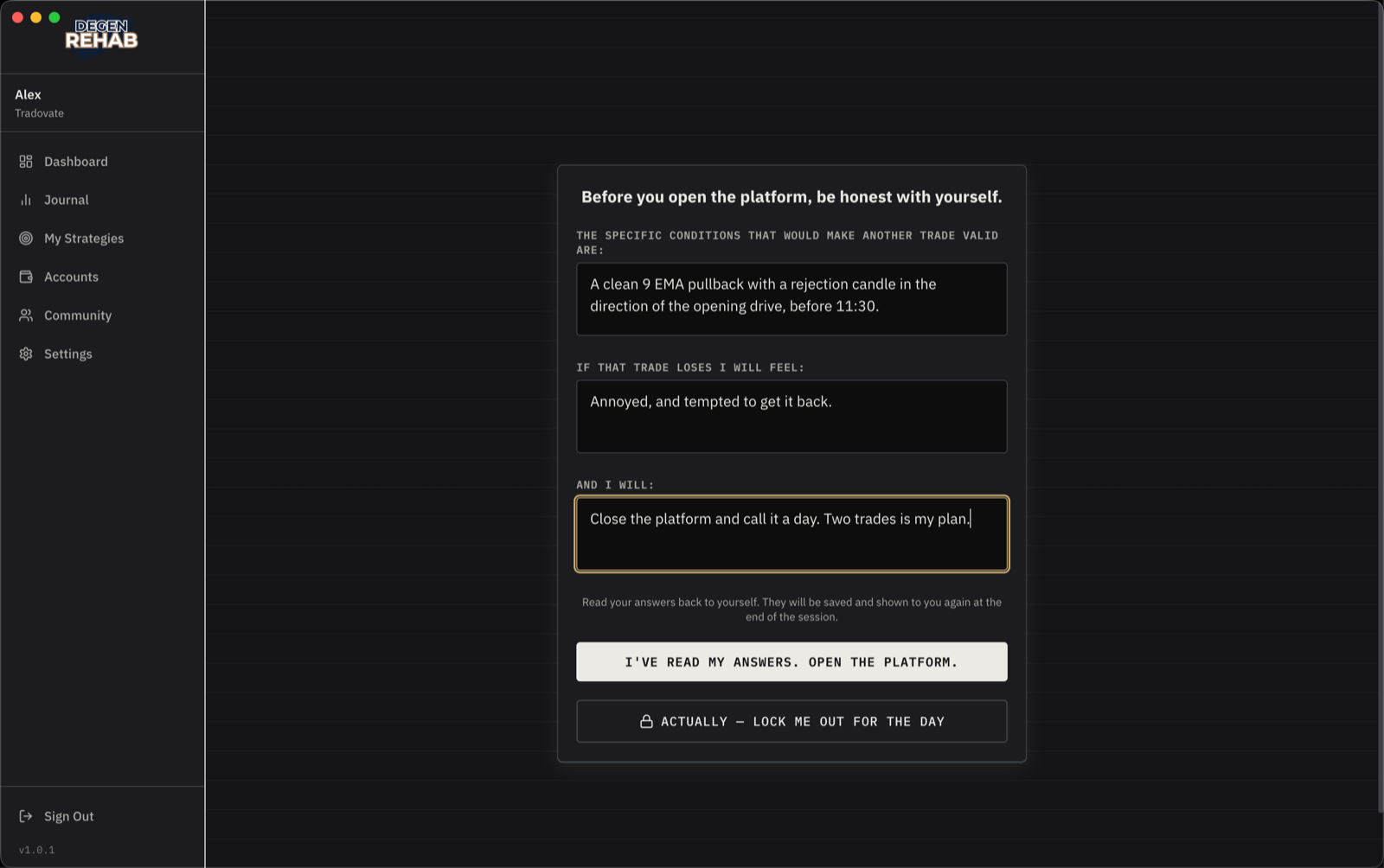
Keeping going means writing a short commitment first, about the only setup you will take next and what you will do if it loses. Only after that does trading unlock. The lock-out option is offered again on the commitment screen, in case you change your mind.
How a day ends
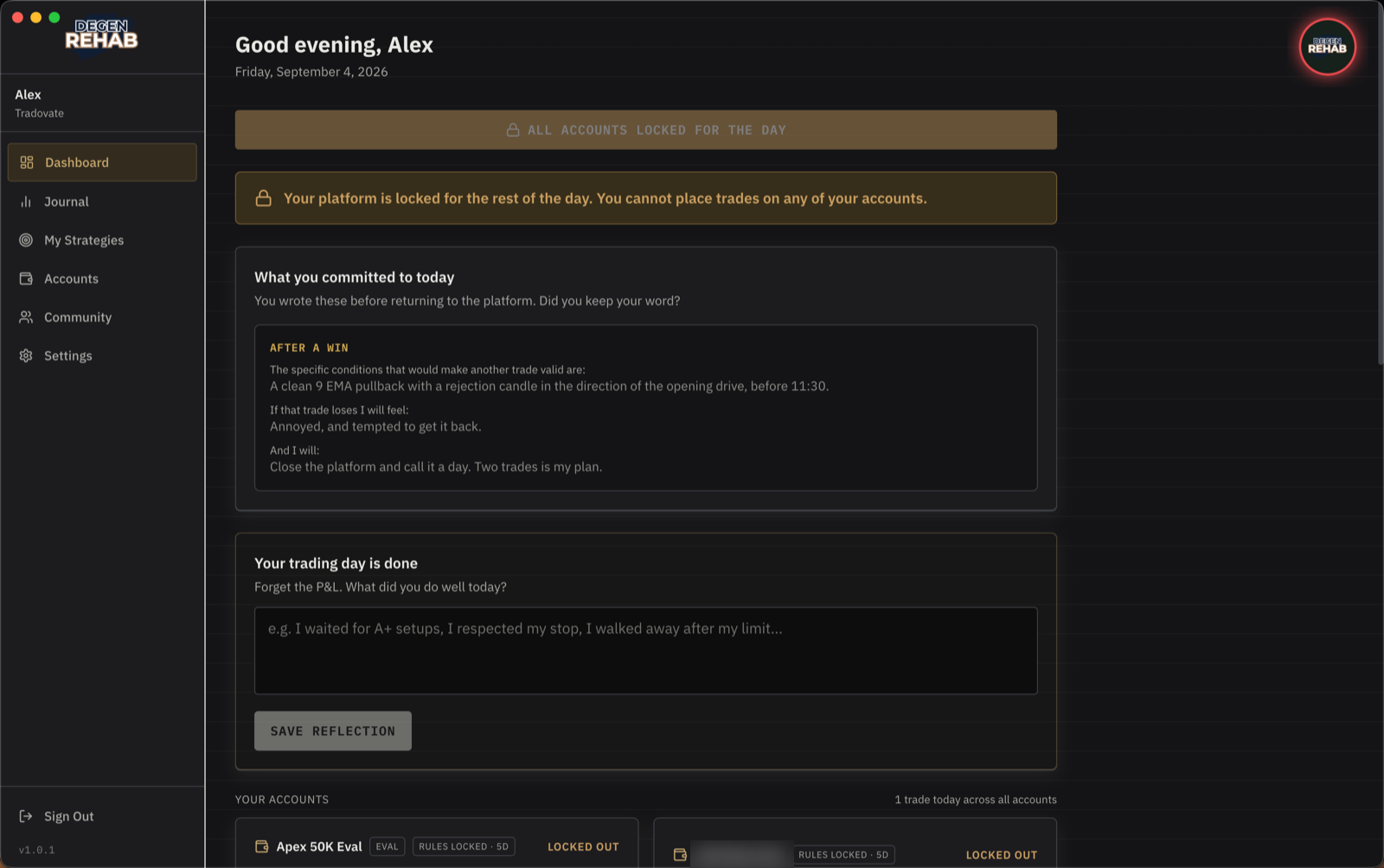
- Cleanly. You hit a profit target or trade cap, or you clicked End session or Lock out all accounts. Your streak is safe. If you trade two sessions a day, a clean finish can re-open at your second-session time.
- On a loss lock. A daily loss limit or consecutive-loss stop tripped. That account stays locked until tomorrow, no matter what. Your streak is still safe: hitting your own limit is discipline.
A banner at the top of the Dashboard tells you which accounts are locked, and the commitments you wrote during the day are shown back to you. It survives restarts.
Getting around a lock
Trading through a day lock, from your phone or with the app closed, or removing the protective stop twice are all detected. Closing the app on a locked day is not a break: the lock stays on your accounts until the day ends. Each one breaks your discipline streak, and your cohort is told. The app cannot physically stop a determined person. It can make sure the people you trade alongside know.